

…it was the look on their faces…
Robert Angier
The Pledge
I tried playing some media the other day and noticed that some audio is missing or very quiet. I realized that the audio was 5.1 channels rather than in stereo. As you may know, 5.1 refers to a 6-speaker arrangement for surround sound system. Specifically, the front left and front right speaker, center speaker, left surround and right surround speaker, and the sub-woofer, which corresponds to one channel per speaker. So I suspected that the channels other than left and right are discarded by the audio player.
The Turn
To demonstrate this effect I present to you a test file that has 6 audio channels. In sequence, a man speaks on each of these channels the name of the channel he is speaking on. The words said are “Left”, “Center”, “Right”, “Right Surround”, “Left Surround”.
File taken from archive.org
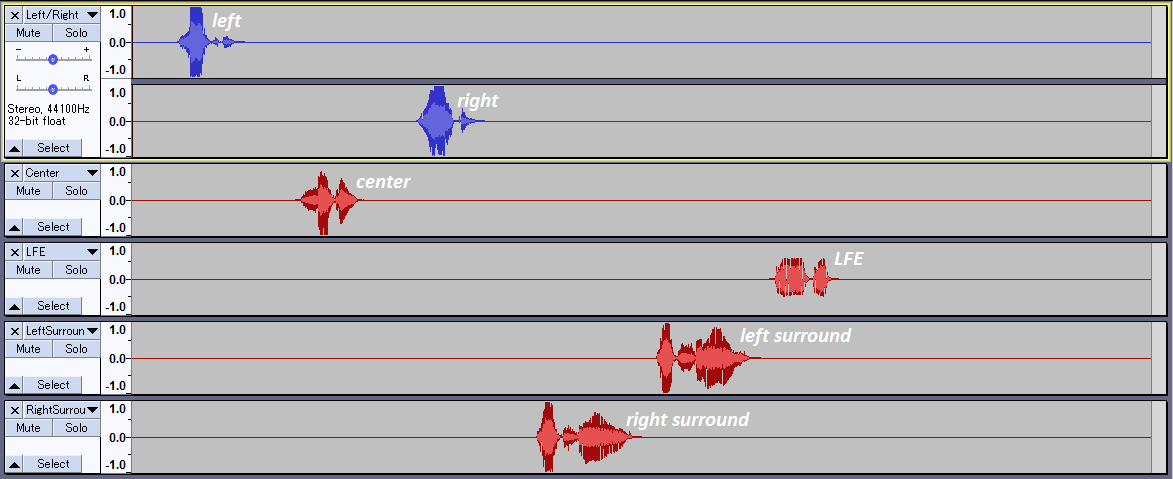
“I don’t hear anything other than ‘Left’ or ‘Right’?!” you say. This is how it will sound because the audio player will disappear the other channels (try it yourself with surroundtest.ac3 file from archive.org). See below image for the waveforms of the 6 channels.
The ordinary way to solve this problem is to “downmix” 5.1 to stereo, that is, output the contents of the other channels to the left and right speaker channels. This can be done simply by the following relation (that can be easily found by a web search):
Front-Left = 1.0*Front-Left + 0.707*Center + 0.707*Surround-Left+0*LFE
Front-Right = 1.0*Front-Right + 0.707*Center + 0.707*Surround-Right+0*LFE
The names are the channel names corresponding to the speaker, LFE (low-frequency effects) is typically the channel sent to the sub-woofer if you have one, and the numbers are normalization constants. The reason for the choice of the constants is to preserve the total sound intensity, which is proportional to the square of the amplitude. So if each speaker works at maximum intensity then to normalize two speakers you need to divide each channel by the square root of 2. LFE is typically dropped (hence the 0) since the usual speakers can’t reproduce the sub-woofer low-frequency sound.
We can take the original surroundtest file and do the downmixing in FFmpeg as follows:
ffmpeg -i surroundtest.ac3 -af "pan=stereo|FL < 1.0*FL + 0.707*FC + 0.707*SL|FR < 1.0*FR + 0.707*FC + 0.707*SR" -f wav surroundtest_downmix.wav
Now we at least hear “Center”, “Left Surround”, and “Right Surround”! So at least we know the information is not discarded. Alas, this simple relation is a very crude approximation to the sense of directionality of sound (sound localization). You can tell that there is almost no difference between “right” and “right surround” except a slight decrease in volume. See the waveform in the below image.
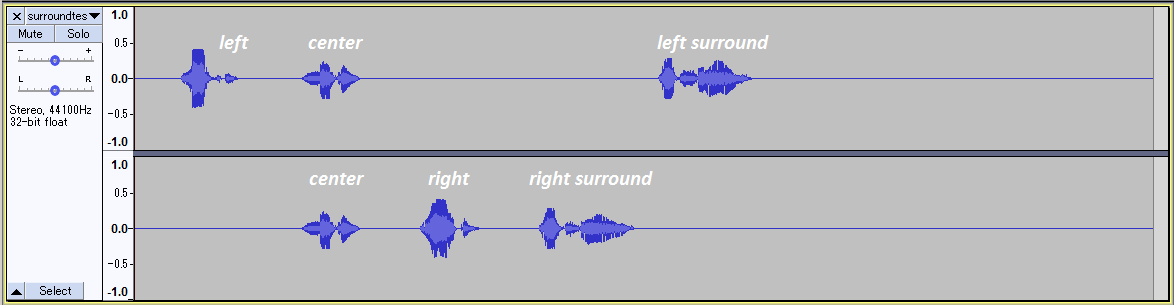
It is apparent that right surround and left surround are just trivially output to the right and left channel. Can we do better?
The Prestige
As it turns out, we feel how far away and which direction a sound is depending on the relative difference of the sound intensity and its phase between the left and right ear (https://en.wikipedia.org/wiki/Sound_localization). So we need to take into account these factors when downmixing the channels.
The Head-related Transfer Function (HRTF) determines how the amplitude and phase of a sound wave of given frequency and origin is changed when it arrives at either the left or right ear (and with the head obfuscating either side). Experimentally, this is done by placing a microphone in each ear and emitting sound toward the subject at different frequencies and angles to the subject’s head. This can also be done computationally with finite element modelling of the head.
Now I found out that FFmpeg has an audio filter called Sofalizer that can use the HRTF to downmix our 5.1 channel audio files (can be used for 7.1 or 9.1 too). SOFA refers to Spatially Oriented Format for Acoustics and the filename extension that the HRTF data is stored in. The Sofalizer requires one of the .sofa files as an input. These files are publicly available from https://www.sofaconventions.org/mediawiki/index.php/Files. A naive attempt to use this filter has proven very troublesome. For the most part due to the Sofalizer not being able to ‘load’ or determine that the .sofa file is ‘valid’, for some strange reason.
Eventually by trial and error I discovered a SOFA file (HRTF B, NH2) that it worked with! (As a side note, I think it has to do with the different SOFA version and conventions). The FFmpeg implementation is then:
ffmpeg -i surroundtest.ac3 -af sofalizer=sofa="hrtf_M_hrtf B.sofa:speakers=FL 26|FR 334|SL 100|SR 260|BL 142|BR 218:normalize=disabled:gain=22" -f wav surroundtest_sofalize.wav
Note that FL 26|FR 334|SL 100|SR 260|BL 142|BR 218 sets up the angle of the “virtual speakers” (corresponding to a 7.1 surround sound setup; see image) with respect to the listener/viewer.
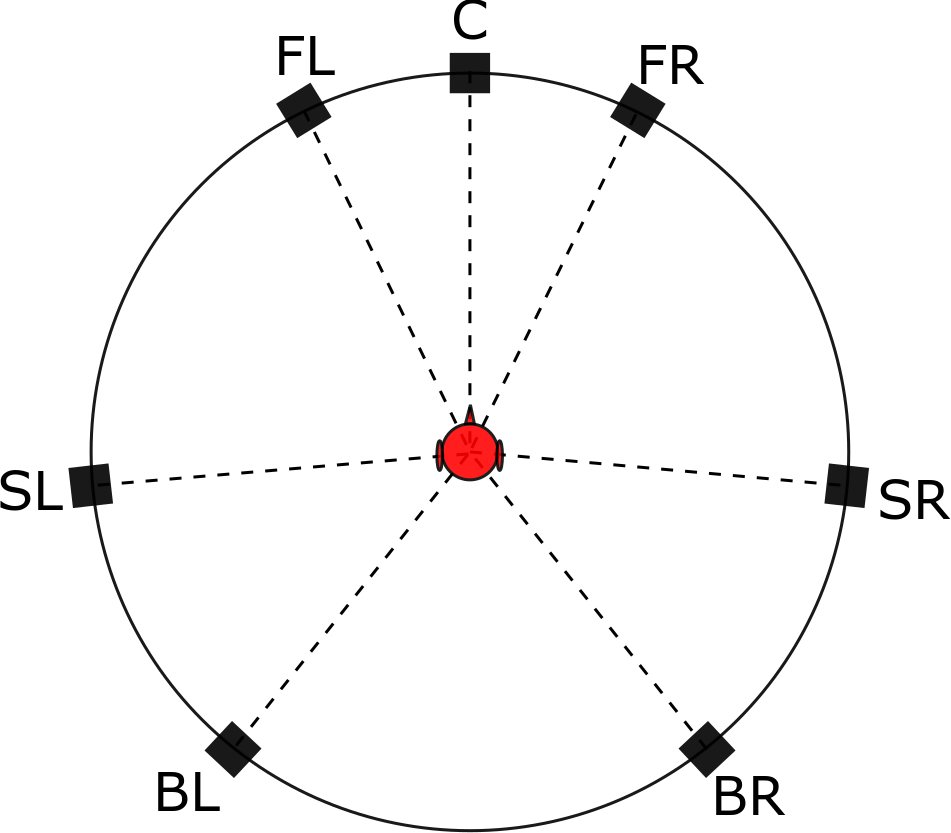
C=Center, F=Front, L=Left, R=Right, S=Surround, B=Back
The argument normalize=disabled is to preserve the original data but this causes the sound to be too low, therefore, I use an overall gain=22 to make the audio file sound good.
Voilà! Comparing this to the simple downmixing you can immediately tell that there is some ‘space’ between you and the sound source. Moreover, the angle of the sounds matches very well with the diagram I showed above. Here the “left” and “right” are placed in “front left” (FL) and “front right” (FR) positions which is evident from the audio. Lastly, to our surprise, we recovered a nice bass effect at the end!
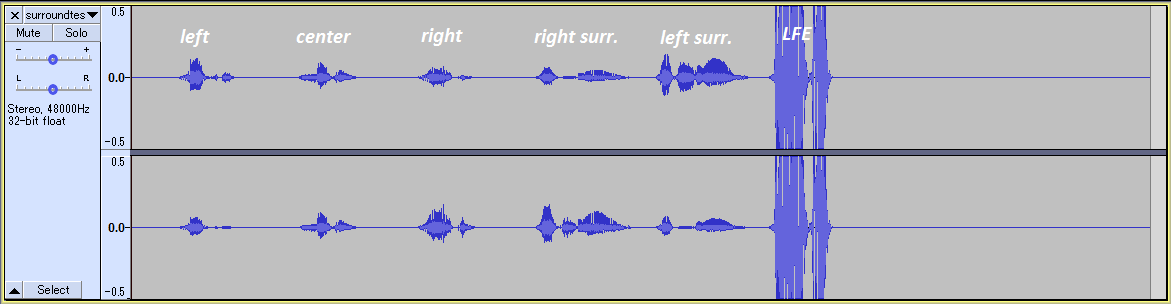
In the above waveform image it is clear that the different channels were downmixed in a non-trivial fashion, taking care about the relative amplitude and phase. The LFE is also present and with much greater amplitude than the other sounds. Regardless, due to its low frequency, the perceived sound is not so loud.
In case you are wondering how the HRTF data looks like I have made a color plot of a subsection of it corresponding to the case when the speaker is along the equator relative to the listener (for both ears).
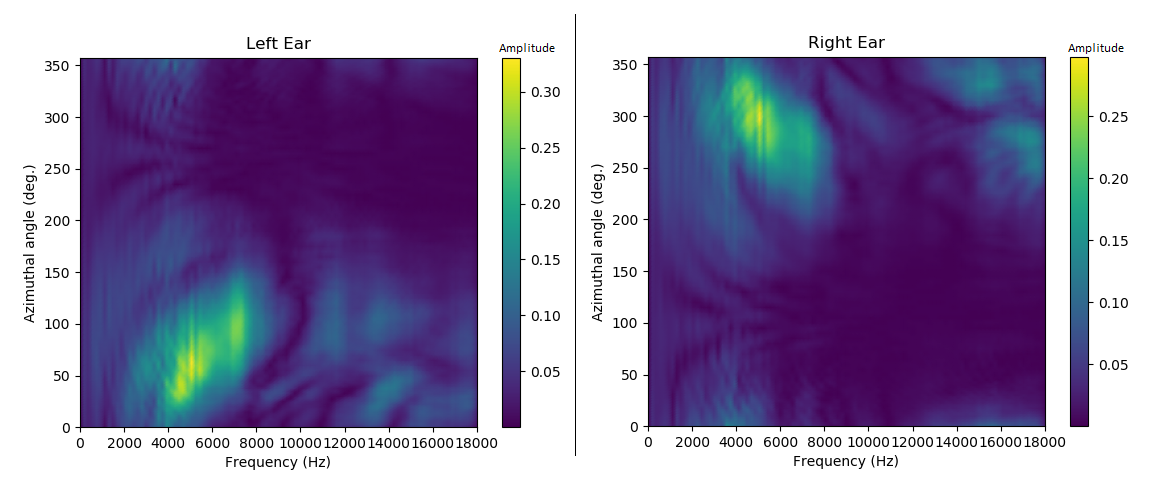
From the above color plot confirms the intuitive case that sound most easily reaches our ears when it directed exactly towards it from the open side (and not from the other side of the head) as shown by the bright yellow region. Also this data confirms the commonly known fact that the ear is most sensitive from around the 2 kHZ to 8 kHz region.
Epilogue
Now you may be thinking this is too much work to convert your audio or movie files. Fear not! For you can simply drag-n-drop files into a shortcut to the player and the files will be converted on the fly!
- Download mpv media player
- Make a shortcut to mpv.exe
- In the shortcut link after mpv.exe add the following argument:
–af=lavfi=[sofalizer=sofa=”hrtf_M_hrtf B.sofa:speakers=FL 26|FR 334|SL 100|SR 260|BL 142|BR 218:normalize=disabled:gain=22″]
Make sure that “hrtf_M_hrtf B.sofa” file is in the same directory as mpv.exe.
You’re done!
Now you have surround sound experience with just your headphones. But before you start selling your expensive surround sound system there are some important points to consider:
- Using HRTF filtering of 5.1 (or higher) surround sound is just to simulate the already inaccurate simulation of actual “surround” sound that 5.1 is trying to achieve.
- HRTF is different from person to person! The reason is that the shape of our head and ears are different from each other so the way the sound reaches our ear canal differs between us. This means that using an HRTF different from what it would be for your own head would produce inaccurate surround sound simulation (although it would still be better than the simple downmixing). Therefore using HRTF filtering for 5.1 (or higher) would only at best give you an audio experience that is matching to the actual surround sound studio (unless your studio is terrible).
- If there is a stereo version of the file available it’s probably downmixed (and ‘sound engineered’) better than the result produced by my arbitrary choice of SOFA file.
- A technical point but the SOFA file above is determined at a single radial distance from the listener at 1.5 m. A home theater speaker placement could be greater than that. This distinction between close and far distance determines what is known as a near-field and far-field HRTF. I would like to try an SOFA file with a distance of 3 m but I can’t get those to work (due to SOFA version?).
- There’s a nice website that lets you test SOFA files (any will work): WebSofa Demo
Also my YouTube channel for AI related projects.
 Code Wanderer
So insight, much wow into the sound environment.
Props must be given to the fate that brought codewander to the chinpokomon episode, and the frenzy of work hereon after.
LikeLiked by 1 person
Bad choice of SOFA file. You always want to use a DTF, not a raw HRTF for this purpose. The database used even supplies those.
Another database with SOFA DTFs I can recommend is the SADIE II database, all the “HRIR” SOFA files there are DTFs: https://www.york.ac.uk/sadie-project/database.html.
LikeLiked by 1 person